Understand what a sync conflict means
A file sync conflict happens when a syncing service finds changes it cannot safely combine. You might edit a document on a laptop while it is offline, then change the same document on a tablet before the laptop reconnects. Rather than guess which edits matter, the service may keep one file and create another labeled as a conflicted copy. Different apps handle this differently, so the exact message or filename may vary.
A conflict is not necessarily a sign that anything is broken. It is a prompt to make a decision about competing versions. The safest first move is to slow down: do not immediately delete the extra file or keep opening and saving both versions. Further edits can make it harder to tell which changes came from where.
Preserve the versions before you compare them
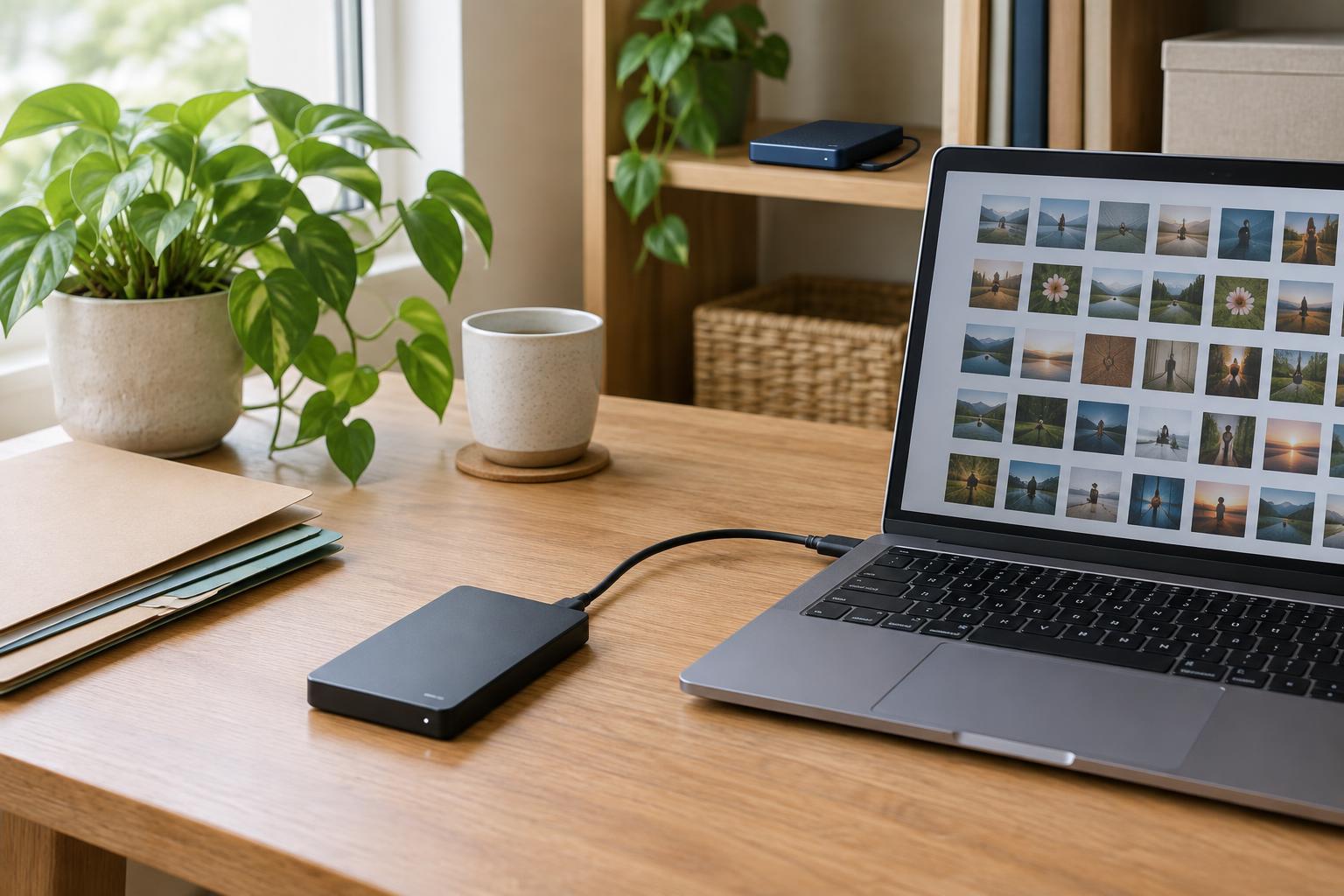
Start by confirming that syncing has finished on each device you used. Look for a completed sync indicator or check the service’s activity view, if available. If a device is still offline, leave its local copy alone until you can inspect it. Before changing anything, make a separate copy of each version in a temporary folder outside the active sync folder, or use the app’s version history if it offers a reliable way to restore earlier states.
Give the saved copies descriptive names such as “project-notes-laptop” and “project-notes-tablet.” Include a date in the name if that helps you distinguish them, but do not rely on a timestamp alone to choose a winner. A file’s modification time may reflect a sync action rather than the last meaningful edit. If the material is especially important, confirm that you can open the preserved copies before proceeding.
Choose a resolution based on the contents
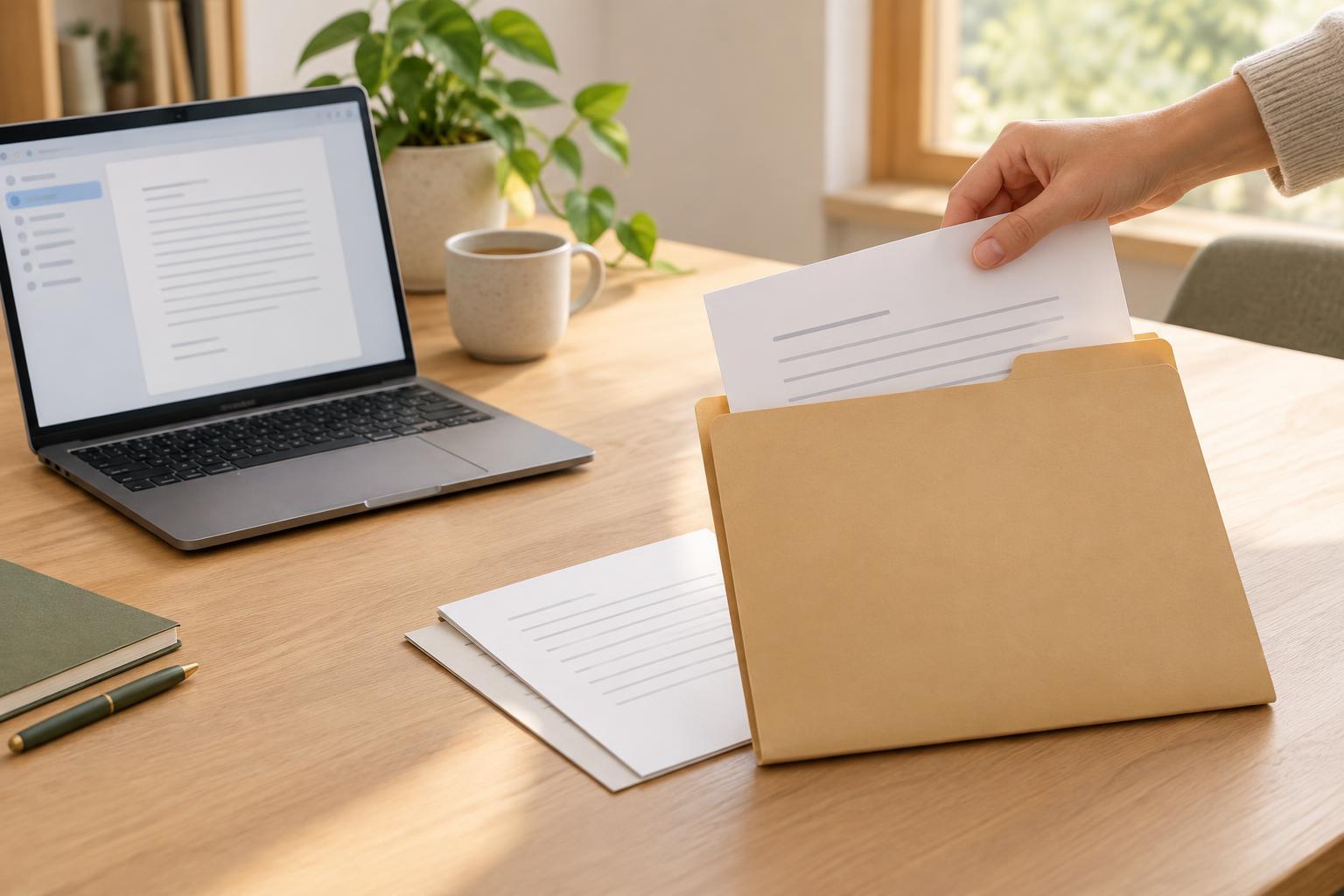
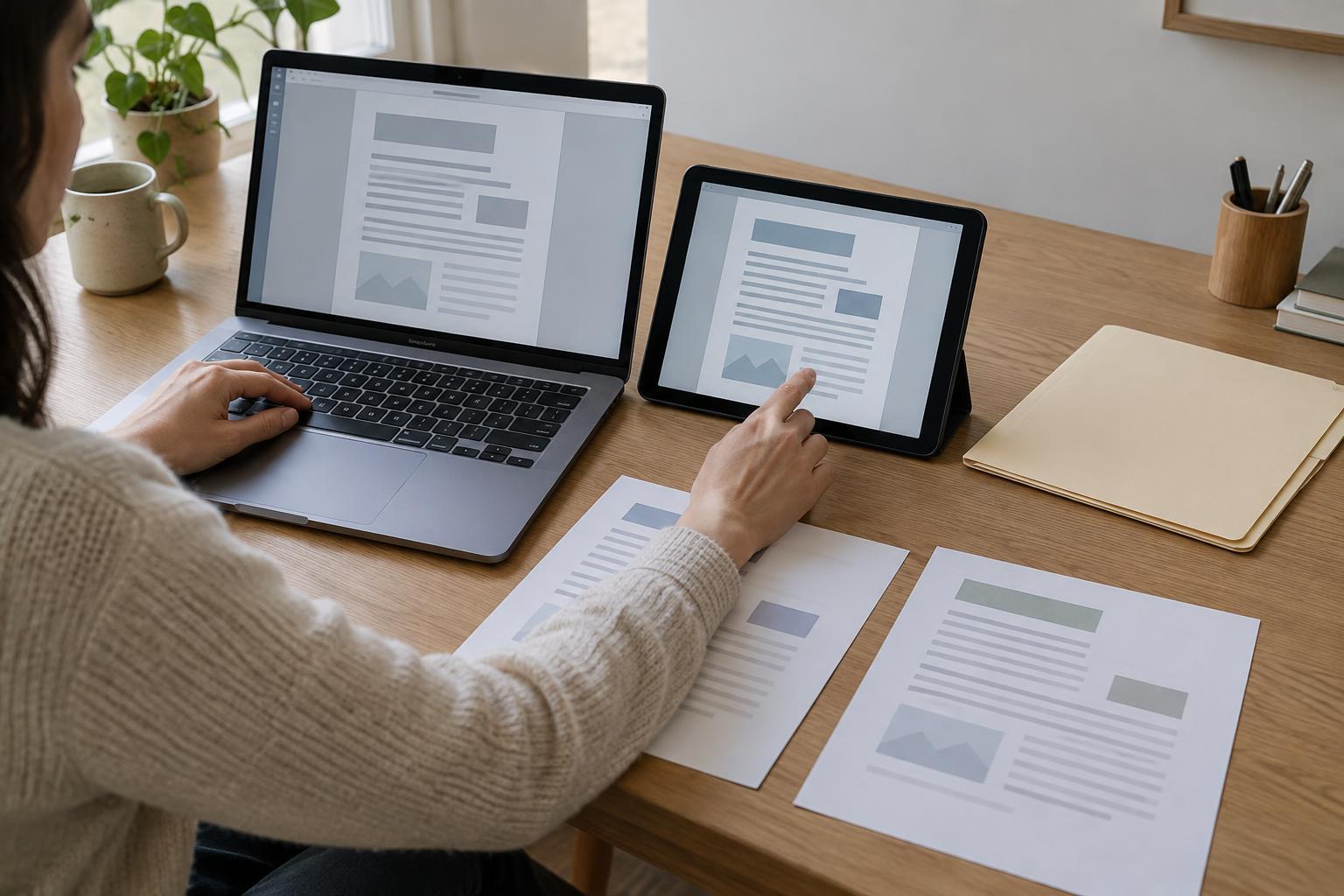
Open both versions and compare the actual work. For a short text document, read them side by side and note any unique paragraphs, comments, or formatting. For a larger file, your editor may have a comparison or version-history tool. If one copy clearly contains all the useful changes, keep it as the final version. If each has something you need, combine those changes into a new copy rather than overwriting either original while you work.
Some file types need extra care. A spreadsheet may have changes in different cells or sheets; a presentation may contain revised slides and speaker notes; a design file may not be easy to compare outside its own app. For these, inspect the relevant parts before deciding. Once the combined file is complete, give it an unambiguous name, save it in the intended sync location, and wait for syncing to finish. Open it on another device to check that the resolved version arrived. Only then remove unwanted conflict copies from the active folder, keeping your temporary copies until you are comfortable that nothing is missing.
Make conflicts less likely in your daily workflow
The simplest preventive habit is to finish one editing session before starting another. Save and close the file, allow it to sync, and check that the latest version is available on the next device before making changes there. When you know you will work offline, avoid editing the same file elsewhere until the offline device reconnects. This matters most for apps that sync whole files rather than individual changes.
A clear folder structure also helps you spot unexpected copies. Keep one working location for each project instead of moving active files among several sync folders. Avoid renaming or reorganizing a shared folder while another device is still syncing it. If conflicts happen often with a particular file, consider whether the format or app supports your workflow: a tool designed for simultaneous editing may be easier to use than passing a single file back and forth.
Set a simple rule for shared files
With collaborators, a conflict can reflect uncertainty about who is editing what. Agree on one shared location and a basic handoff rule, such as leaving a note when someone is making substantial changes to a file that does not support simultaneous editing. If two people do create separate versions, ask each person which changes they intended before merging. The newest-looking file is not always the most complete one.
Finally, keep sync and backup as separate ideas. Syncing makes files available across devices, but a mistaken deletion or overwrite may also spread across them. A separate backup or accessible version history gives you another way to recover. You do not need a complicated system: a consistent place for active work, a pause to verify sync before switching devices, and a habit of preserving both sides of a conflict can make resolution far less stressful.