Start with the work you cannot easily replace
Backing up your work means keeping a separate copy that you can use if the original becomes unavailable or unusable. You do not need an elaborate system to begin. First, identify the files that would be difficult to recreate: drafts, project files, notes, photographs, design assets and records that support your work. Also include anything a project depends on, such as linked images, templates or exported reference material.
Put these files in a small number of clearly named folders. A structure such as Work, Personal Projects and Archive can be enough. The goal is not perfect organization; it is knowing where your important files live so you can confirm they are included in a backup. If an app stores your work in its own library, check how to export or back up that library rather than assuming its files appear in your usual folders.
Know the difference between syncing and backing up
Syncing keeps files consistent across devices. That is useful when you move between a laptop and a phone, but it is not always a substitute for a backup. If you delete a synced file or make an unwanted change, that action may also appear on your other devices. Some services offer a way to recover older versions or deleted files, but availability and retention vary. Check the settings of the service you use rather than relying on an assumption.
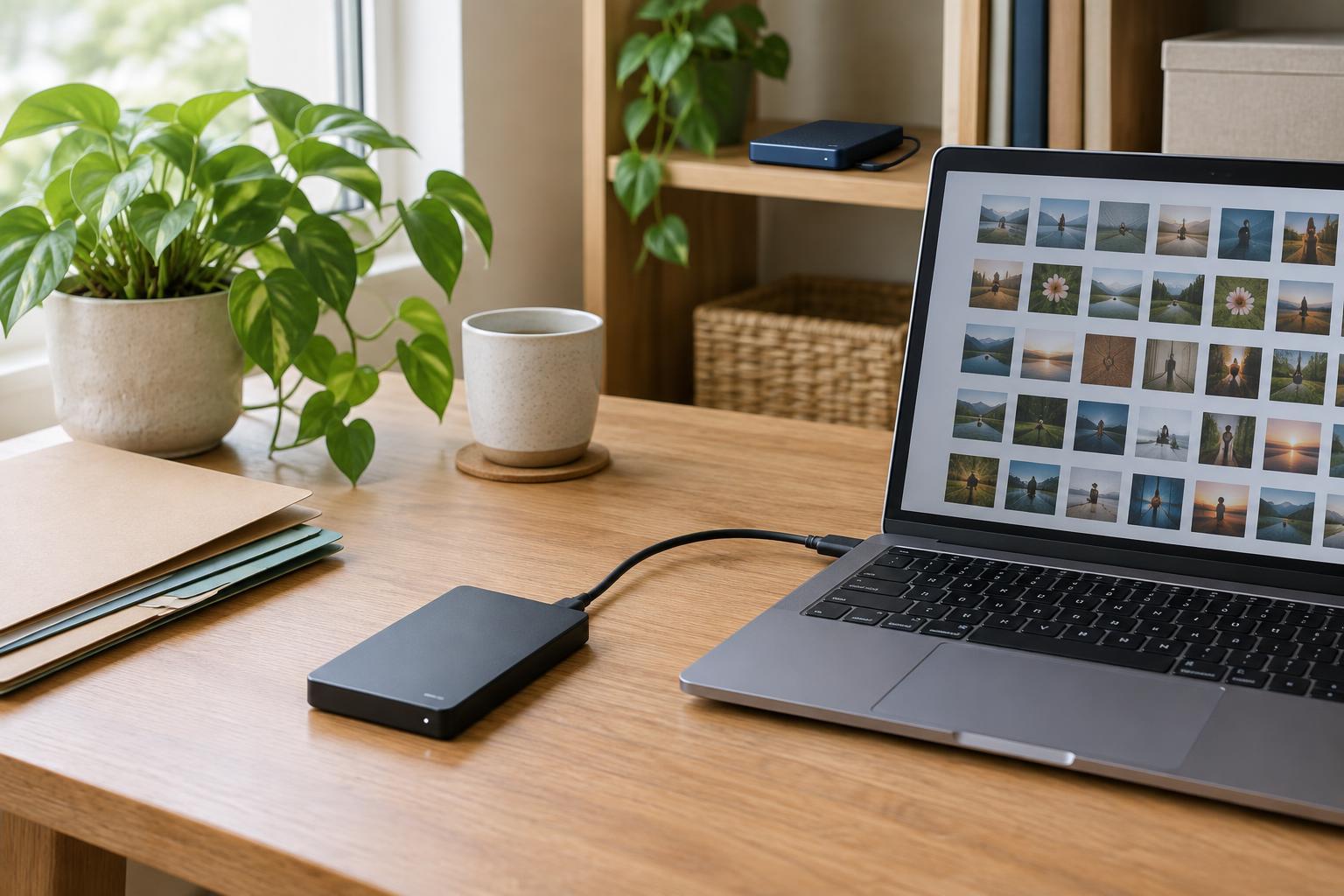
A useful backup gives you another path to an earlier or separate copy. For many people, that means combining a cloud-based copy with a copy on an external drive. They serve different purposes: the cloud copy may be convenient to access away from home, while the drive gives you a copy you control locally. Neither option protects every situation on its own.
Keep copies in separate places
A practical rule of thumb is to keep your working files plus two backup copies, with at least one copy somewhere other than your main workspace. One backup might run automatically to a trusted cloud service; another might go to an external drive that you disconnect and store safely when it is not in use. You can start with fewer copies and improve your setup over time. What matters most is that a problem affecting your computer does not automatically affect every copy.
Choose tools you can maintain. Look for a backup method that covers your important folders, runs often enough for your work habits and tells you when it fails. If a service has version history, find out how long it keeps older versions. If you use a drive, make a note of when you last connected it. A backup that requires attention every day may be harder to sustain than a mostly automatic one with a simple reminder.
Protect access without making recovery impossible
Your backups may contain private notes, client materials or unfinished work. Use a strong, unique password for any backup account and enable additional sign-in protection if the service offers it. If you encrypt a drive or archive, keep its password or recovery key somewhere secure and separate from the device. Encryption can help protect the contents of a lost drive, but it will not help you recover files if the only key is lost.
Write down the essentials of your setup: which folders are backed up, where the copies are stored, which account or app you use and how to begin a restore. Keep that note in a place you can reach if your main computer is unavailable. If other people depend on shared project files, agree on who manages the backup and how access would be restored.
Test the restore, then make it a routine
A backup is most useful when you know it can be restored. Pick a non-sensitive file, locate it in each backup and copy it to a temporary folder. Open it to check that it works. For a project with linked assets or several files, test a small complete project as well. Do not replace your working version during the test; use a separate folder so you can inspect the recovered copy without confusion.
Set a recurring reminder to check that backups completed, review any error messages and repeat a small restore test. Revisit the setup when you get a new device, change apps or add a type of work that lives outside your usual folders. The aim is a routine you can keep, not a system you have to think about constantly. A few deliberate checks can make your backup plan easier to trust when you need it.