Treat Downloads as an inbox, not an archive
The Downloads folder is a convenient landing place, but it rarely makes a good permanent home. Documents, images, installers, and attachments arrive there for different reasons and pile up under names you may not recognize later. The aim of a cleanup is not to create a perfect filing system. It is to decide which files still need your attention, give important ones a sensible home, and remove what you no longer need.
Start with a small, uninterrupted window of time. Open the folder and sort by date modified so recent files are easy to spot. If the folder is large, work through one month or one screen at a time rather than trying to assess everything at once. Keep your usual project or personal folders accessible in another window; moving a file directly to its destination is simpler than making a second pile to sort later.
Make a few clear decisions for each file
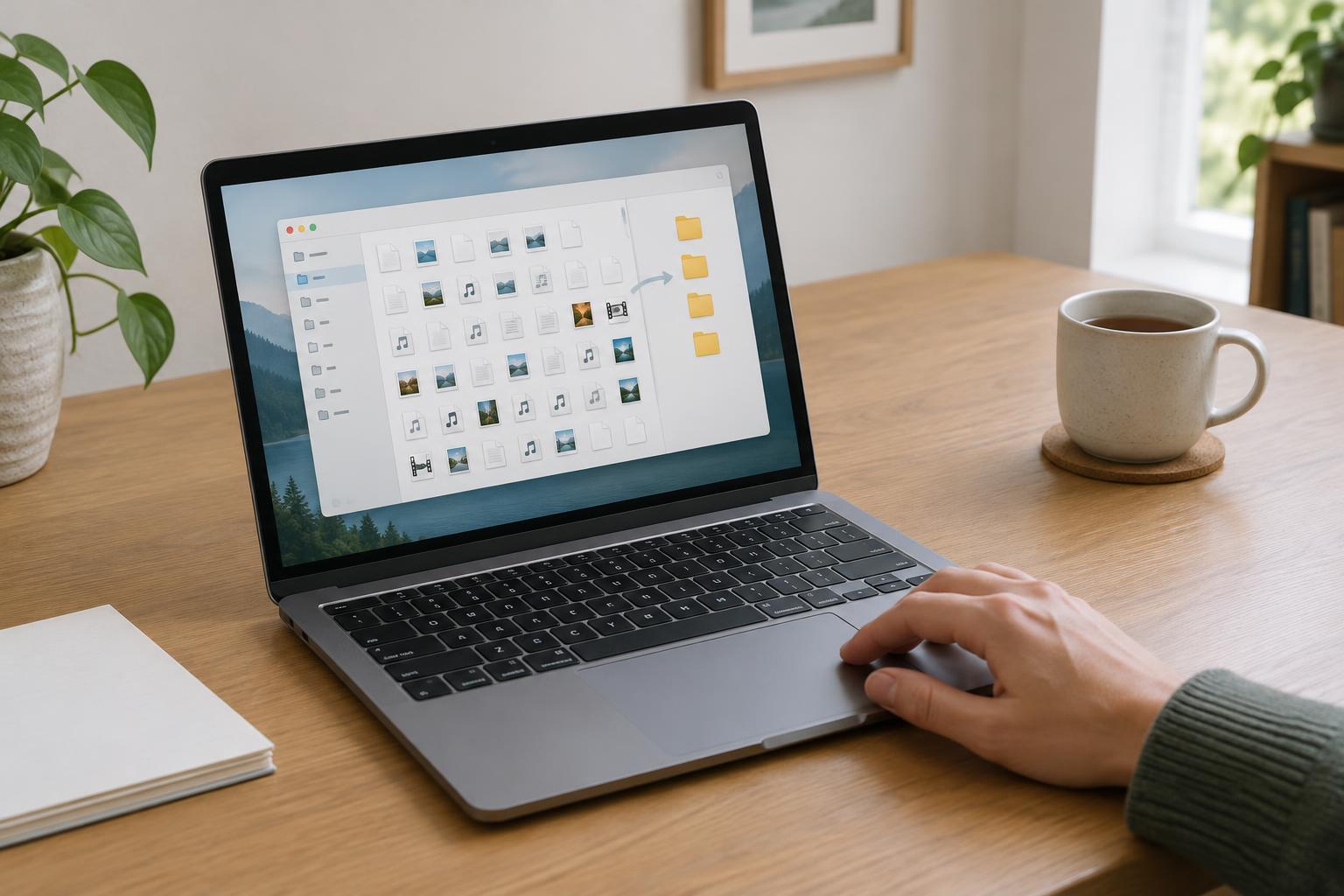
Use four possible outcomes: move it, keep it temporarily, delete it, or leave it for review. Move active documents into the folder for the project, person, or area they belong to. Put files you need only briefly, such as a form you have not yet completed, in a clearly named temporary folder. Delete obvious duplicates and files you are confident you no longer need. If a name is unfamiliar, open or preview the file before deciding.
Be cautious with anything that may be difficult to replace: completed forms, receipts, original creative work, and files shared by someone else are worth checking before removal. A download may also be the only copy you have, even if its name looks generic. When you cannot decide quickly, place it in a small “Review Downloads” folder and continue. That folder should be a short decision list, not a new permanent archive.
Give useful files a findable home
Choose destinations based on where you would look for a file later, not just on its file type. A presentation for a particular project is usually easier to retrieve from that project’s folder than from a general “Presentations” folder. Keep the structure shallow enough that you can remember it. If you already have an organization system, use it rather than redesigning all your folders during this cleanup.
Rename files when their current names hide their purpose. A short, consistent name might include the project, the document’s purpose, and a version label where needed. For example, “Garden plan draft” tells you more than a string of numbers from a download link. Avoid renaming files if doing so could disrupt an application or a shared workflow; for those, moving them into a well-named folder may be enough. Check that important files open from their new locations before clearing the originals.
Handle installers, duplicates, and bulk cleanup carefully
Installers and compressed files often linger after you have used them. If you are sure an application is installed and you do not need the installer for another device or an offline setup, you can remove the downloaded copy. For compressed files, check whether the extracted contents have a proper home before deleting the archive. If you see several files with similar names, compare them rather than assuming the newest is the right one; one may contain edits or different content.
Bulk selection can save time, but review the selection before deleting or moving it. Pay special attention if Downloads is included in a cloud-sync or backup setup, since changes may carry over to other devices or stored copies. You do not need to settle every ambiguous case in one session. Finishing the clear decisions first creates space to examine the remaining files without rushing.
Keep the routine light enough to repeat
Once the first pass is done, choose a trigger for future check-ins: the end of a workweek, the completion of a project, or the moment the folder becomes hard to scan. During each check-in, sort recent arrivals into the same four outcomes. Review the temporary and uncertain folders as well, so they do not quietly become another Downloads folder.
You can also reduce clutter as it arrives. When saving an important file, choose its destination immediately if your browser or app offers that option. When you need a file only once, leave it in Downloads and clear it during the next check-in. A useful routine is one you can maintain without much thought: the folder stays available for new arrivals, while the files worth keeping end up where you will actually look for them.